
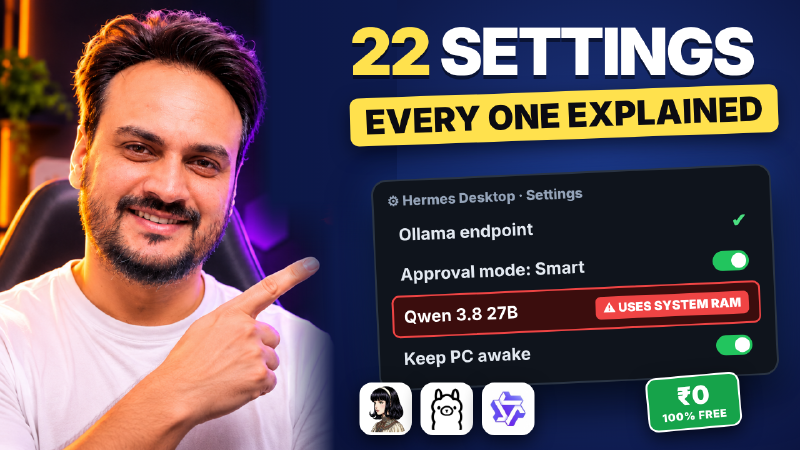
Hermes Desktop told me something about my own PC that I didn’t know. My everyday model, Qwen 3.8 27B, doesn’t fully fit on my RTX 4070’s 12 GB of VRAM. Part of it spills into system RAM, which makes it slower. I found that on a Settings page I had never opened, so I went through all of them.
This post covers every page in Hermes Desktop (v0.23.3 on Windows): what each one does, what I set it to, and what you can skip on a free, local setup. At the end are the 5 settings I’d change today.
This is Part 3 of the series. Part 1 is the Hermes + Ollama + Qwen 3.8 setup on Windows, and Part 2 is controlling Hermes from your phone with Telegram.
🎥 Watch the Video
👉 Watch on YouTube: Hermes Desktop Full Guide
🎮 Does Your Model Even Fit on Your GPU?
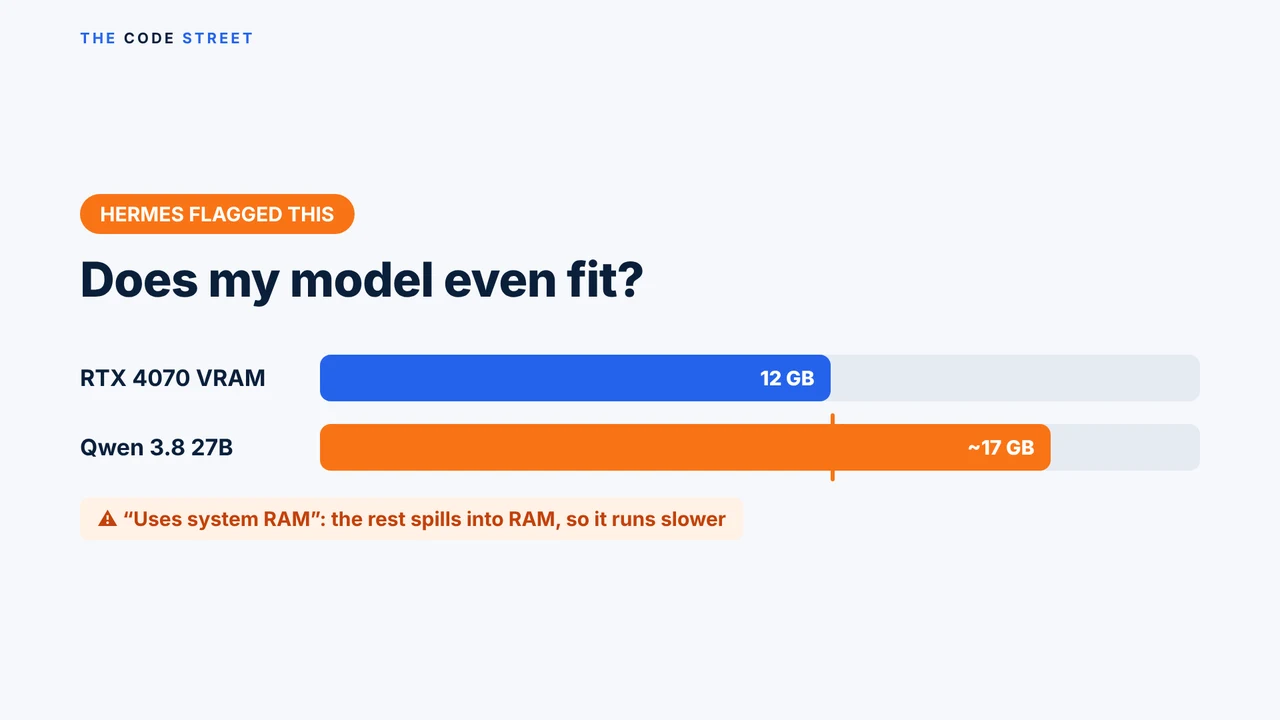
Qwen 3.8 27B is roughly a 17 GB download. My graphics card has 12 GB, so Ollama keeps part of the model in normal RAM. It still works, just slower. Hermes Desktop shows this on its Local Models page, which we’ll get to in the Providers section.
🧭 Two Places to Know
Hermes keeps things in two places:
- The main sidebar (left) is about what Hermes can do: Capabilities, Messaging, Artifacts and Scheduled jobs.
- Settings (
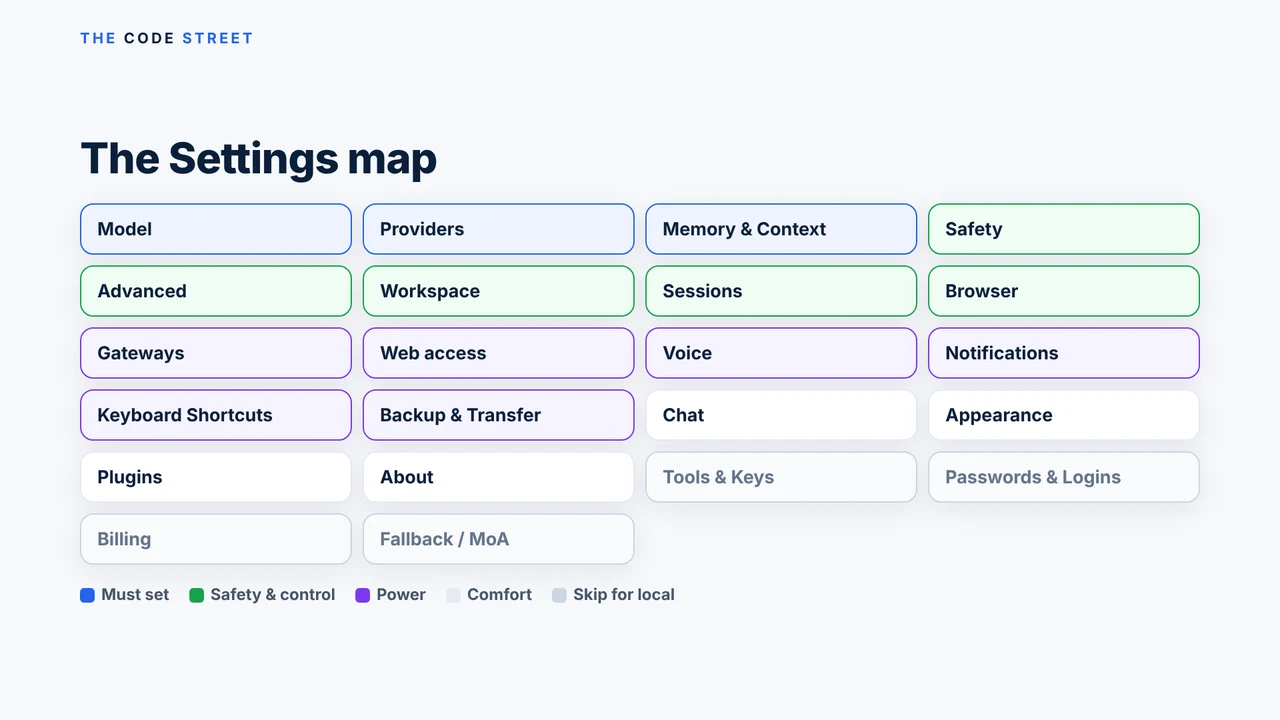
Ctrl + ,) is about how Hermes behaves. It has 22 pages, from Model down to About.
🧩 The Main Sidebar
Capabilities
There are four tabs:
- Skills: a catalog of skills you can switch on, grouped by topic.
- Plugins and Connectors: add features and link outside apps.
- Tools: an on/off switch for every tool Hermes can use, including files, browser automation, code execution, memory, the terminal, cron jobs and web search.
If Hermes ever behaves strangely, check here first to see which skills and tools are on.
Messaging
Hermes can connect to Telegram, WhatsApp, Discord, Slack, Signal, email, SMS and more. For Telegram there’s now a Quick setup → Create with QR button. You scan, confirm in Telegram, and Hermes creates the bot and detects your user ID. In Part 2 I did this the manual way.
Whichever way you do it, keep Allowed user IDs limited to your own ID and never leave it empty.
Scheduled jobs
This is where Hermes works without you typing anything. It comes with templates such as Morning briefing, Important mail monitor, Weekly review, Topic news digest, and Bills and renewals. Pick one and set a time.
🤖 Model
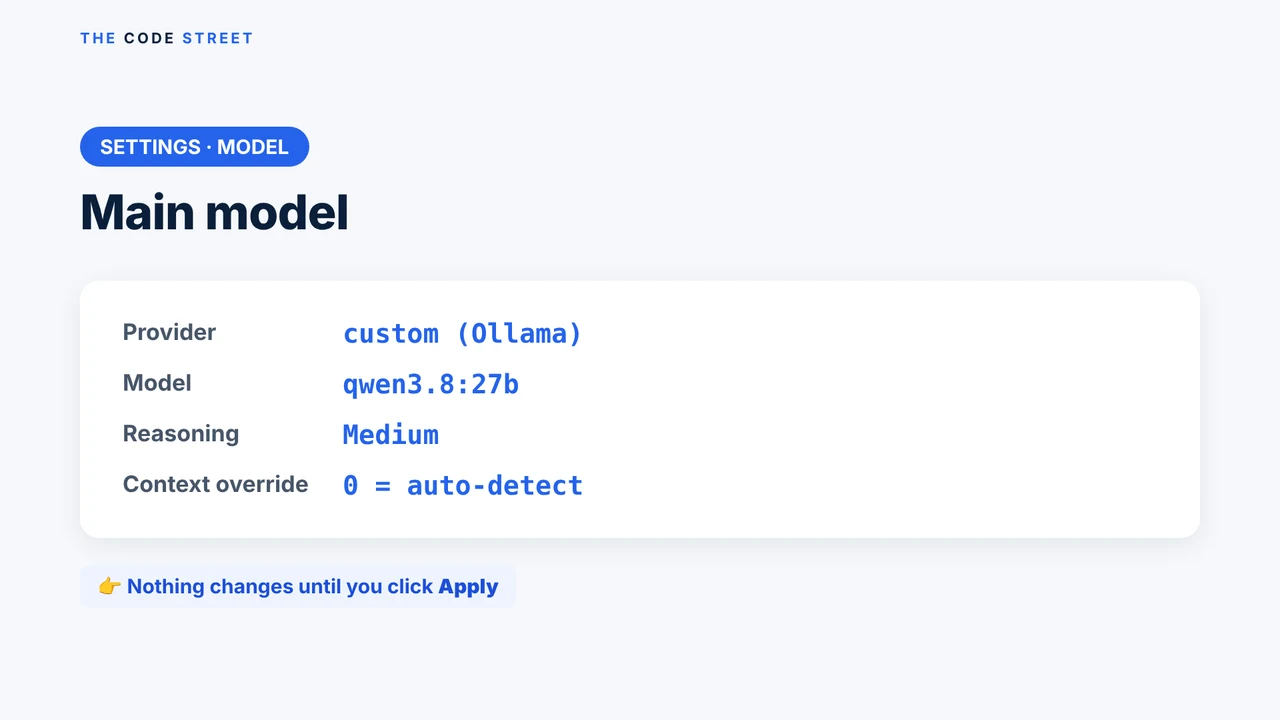
Model → Main model is the default model for new chats:
- Provider:
custom(our Ollama endpoint) - Model:
qwen3.8:27b - Reasoning: Medium
- Main model context window (override):
0, which means Hermes uses the context it detects from the model
Click Apply. Until you do, nothing changes.
Hermes needs at least 64K of context, so check the real value with ollama ps (below) instead of guessing.
The Model section has four more pages:
| Page | What it does | For a free local setup |
|---|---|---|
| Fallback models | Backup model if the main one fails | Optional |
| Auxiliary models | Small jobs: chat titles, vision, compression | Leave on “use main model” |
| Subagents | Helper agents for big jobs | Keep the count low on 12 GB |
| Mixture of Agents | Several cloud models answer together | Skip, it isn’t free |
🦙 Providers: Connect Ollama
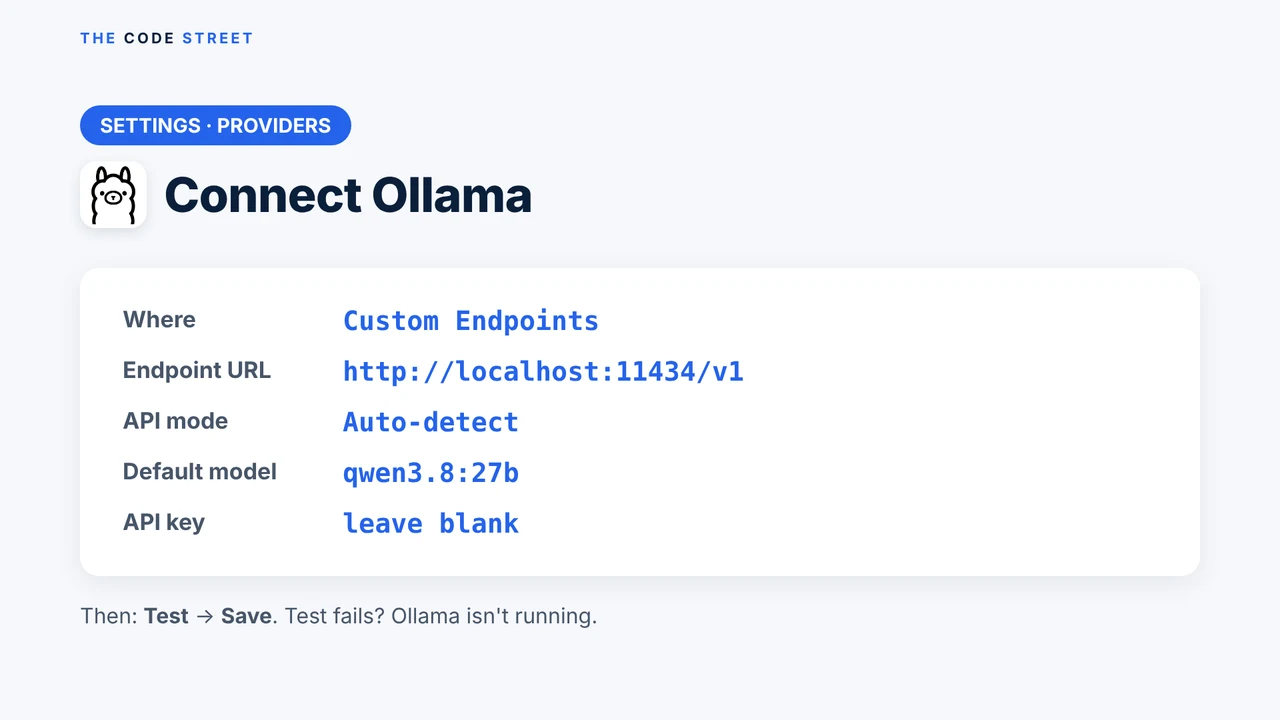
Go to Providers → Custom Endpoints and add Ollama:
| Field | Value |
|---|---|
| Endpoint URL | http://localhost:11434/v1 |
| API mode | Auto-detect |
| Default model | qwen3.8:27b |
| API key | Leave blank |
Click Test, then Save. If the test fails, Ollama usually isn’t running, so start it and test again.
Local Models: the page that checks your PC
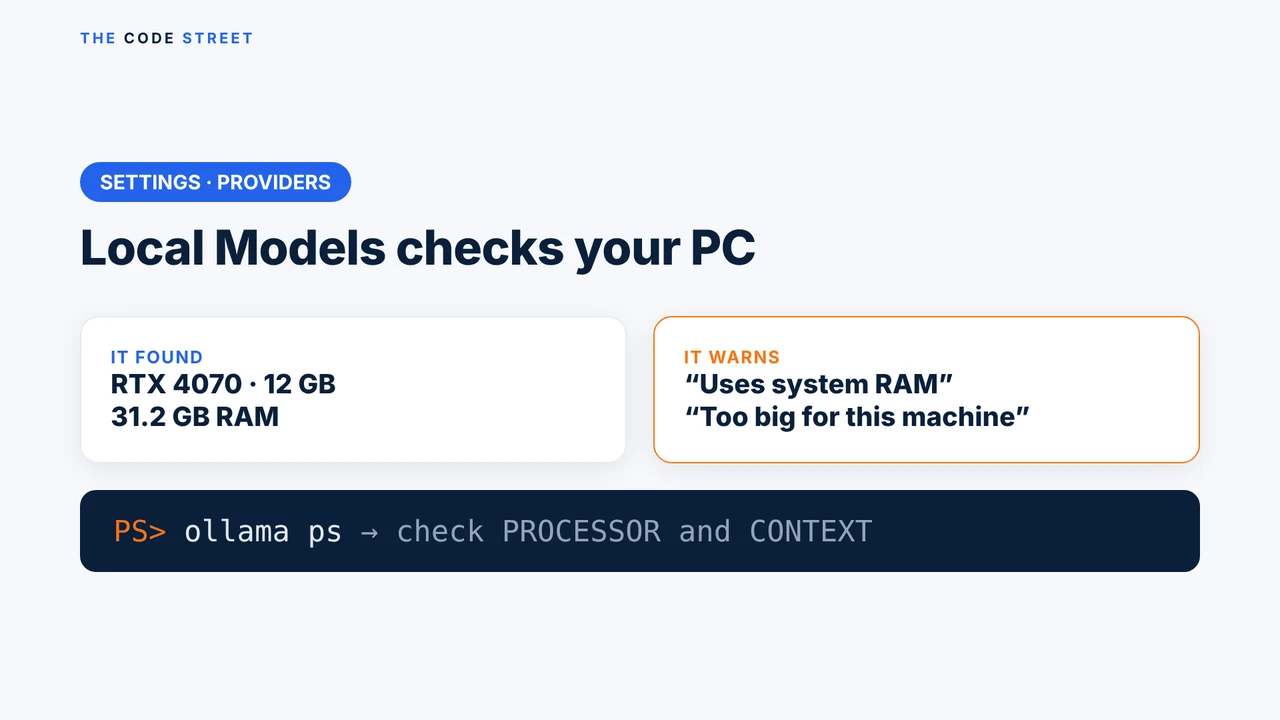
Providers → Local Models detected my RTX 4070 (12 GB) and 31.2 GB of RAM. It then labels each model: some say “Uses system RAM”, and the biggest say “Too big for this machine”.
To confirm it yourself, run this in PowerShell while the model is loaded:
|
|
- PROCESSOR shows whether the model runs fully on the GPU or is split between CPU and GPU.
- CONTEXT should be 64K or more for Hermes.
If your model is split, you can accept the slower speed or switch to a smaller Qwen.
🧠 Memory and Context
These two pages are easy to mix up:
- Persistent memory is what Hermes remembers about you across chats, such as facts and a short user profile.
- Context & compression is what fits inside one chat. When a conversation gets long, Hermes summarizes the older messages.
Tip for local models: if your model is slow, raise Compression model timeout (default 120 seconds).
🛡️ Safety
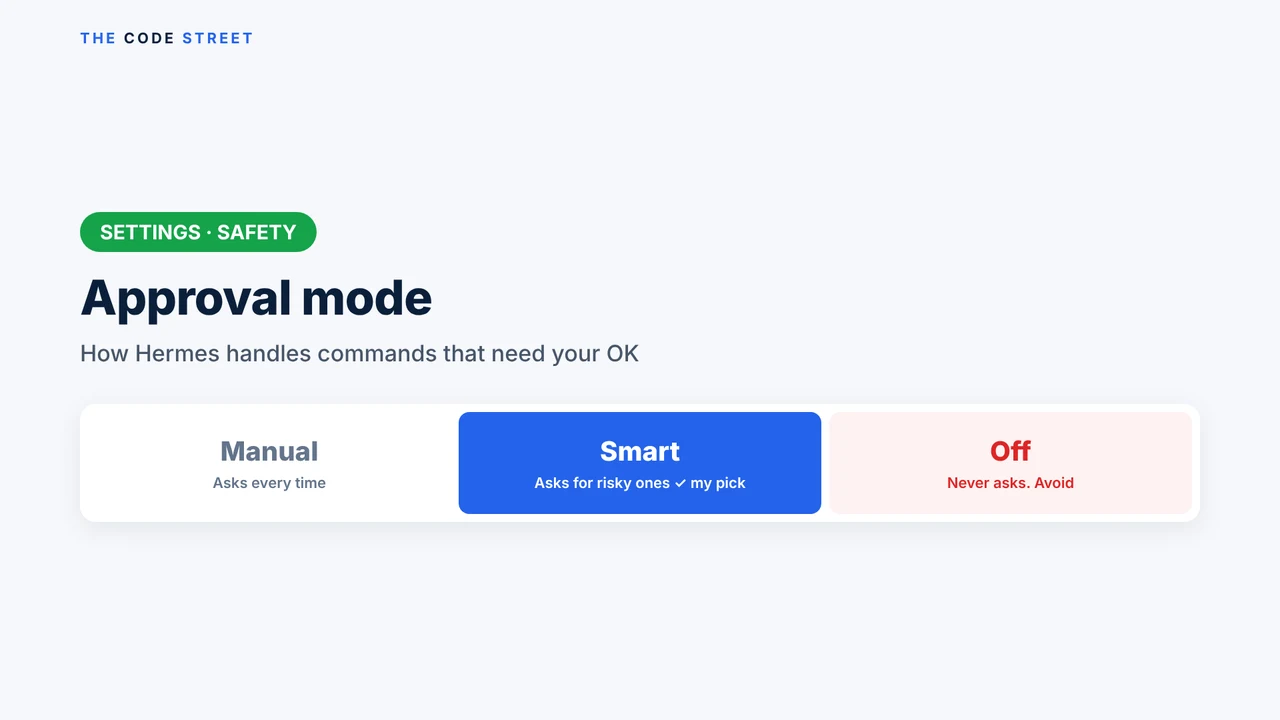
Approval mode decides what Hermes does before running commands:
- Manual: asks every time.
- Smart: asks only for risky commands. This is what I use.
- Off: never asks. Avoid it, because an agent that runs any command without asking can also delete the wrong folder without asking.
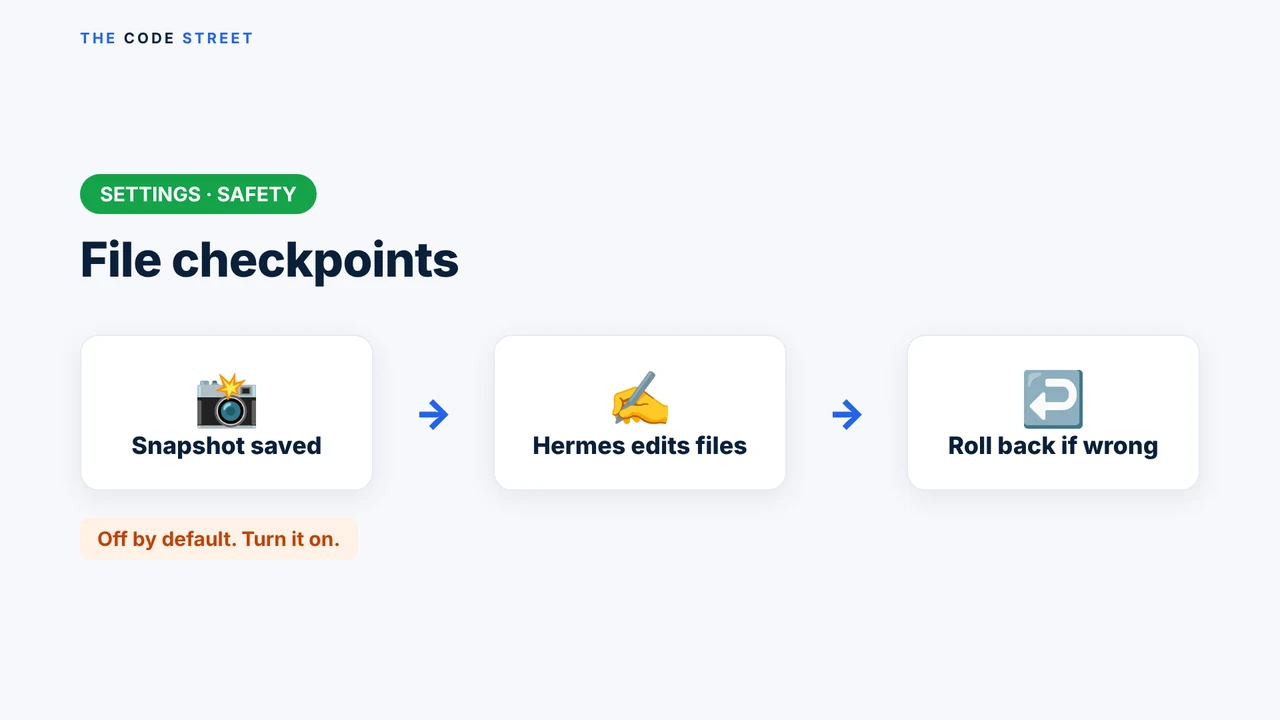
Under Checkpoints, turn on File checkpoints. Hermes then saves a snapshot before it edits your files, so you can roll back. It’s off by default.
🗂️ Workspace, Sessions and Browser
- Workspace: your default project folder, and which folders Hermes scans for Git projects.
- Sessions: auto-archive old chats to keep the sidebar clean.
- Browser: “Use my real browser profile” lets Hermes use your saved logins. It’s off by default, and I’d leave it off unless you really need it.
⚡ Advanced
- Desktop & startup → Keep computer awake: Off, While working or Always. Telegram and scheduled jobs only work while the PC is awake, so I use While working. This page also has Quick Entry, a small chat box you can open from anywhere, and Run onboarding again.
- Terminal backend: where commands run. Local (your PC) is the default. Docker runs them in a sandbox, and Modal and Daytona are cloud sandboxes. The command timeout defaults to 180 seconds.
- Agent limits, Tool access, Output limits: finer controls. The defaults are fine to start with.
🌐 Gateways and Web Access
- Gateways decides where Hermes runs. Local gateway (this PC, works offline) is the default. The other options are Hermes Cloud, a remote gateway on another machine, or your own server over SSH.
- Web access lets you open Hermes from your phone’s browser on the same Wi-Fi. The connection isn’t encrypted on your network, so use it only at home.
🎨 The Quick Ones
- Chat: personality, time zone, and Reasoning Blocks, which shows or hides the model’s thinking.
- Appearance: language, theme, fonts, layout.
- Voice: read replies aloud, speech to text, text to speech.
- Notifications: desktop alerts, for example when Hermes needs your approval.
- Keyboard Shortcuts: every binding can be changed. Remember
Ctrl + ,(Settings) andCtrl + K(search). - Backup & Transfer: saves your whole agent (profiles, settings, memory, skills, schedules and chats) to one file. Do this once you’ve finished setting up.
- About: your version, update checks and uninstall.
🗑️ What You Can Skip on a Free Setup
- Billing: $0 on the Free plan, which is fine for a local setup.
- Mixture of Agents and Hermes Cloud: these need cloud models or an account.
- Tools & Keys: only needed for paid add-on tools such as search APIs.
- Fallback models: an optional backup.
- Passwords & Logins: leave it alone, and never open it on camera.
🏆 My 5 Must-Change Settings
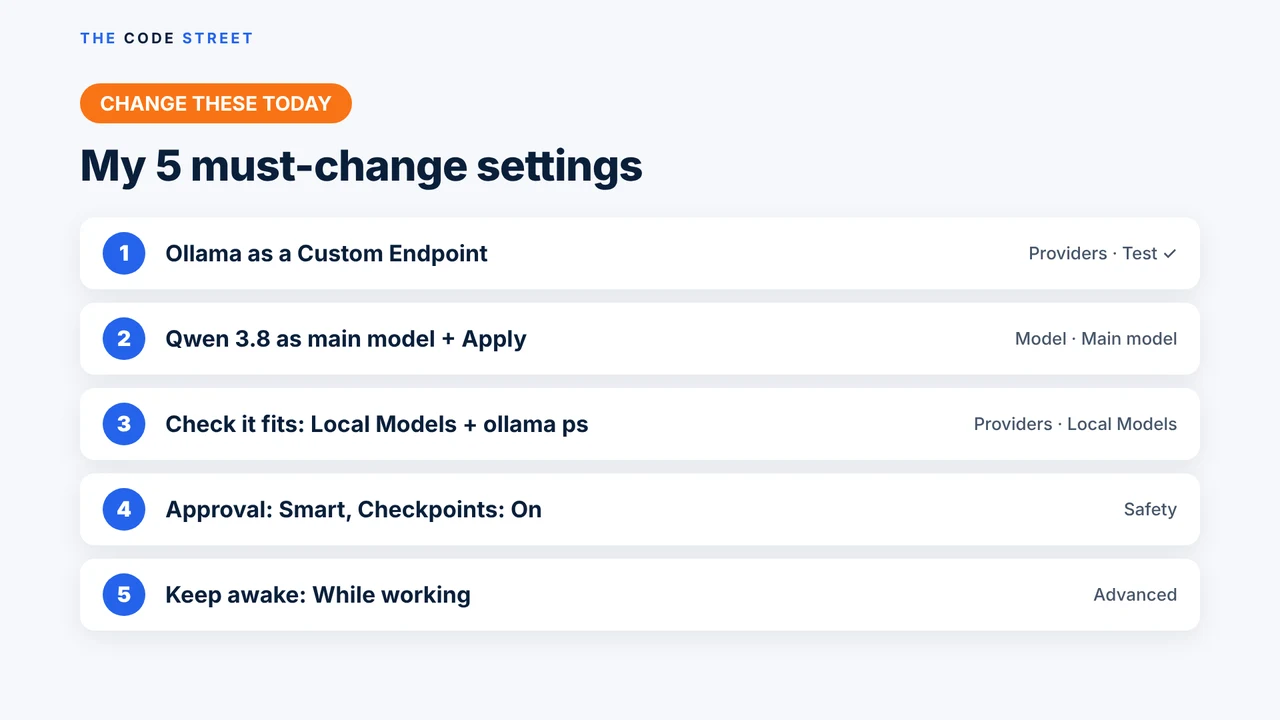
- Providers: add Ollama as a Custom Endpoint, then click Test.
- Model: set Qwen 3.8 as the main model, then click Apply.
- Local Models +
ollama ps: check that your model actually fits on your GPU. - Safety: set Approval mode to Smart and turn on File checkpoints.
- Advanced: set Keep computer awake to While working.
❓ FAQ
Where is the context window setting in Hermes Desktop?
In Settings → Model → Main model, under “Main model context window (override)”. 0 means Hermes uses the context it detects from the model. Check the real value with ollama ps, since Hermes needs at least 64K.
How do I connect Hermes Desktop to Ollama?
Go to Settings → Providers → Custom Endpoints, use http://localhost:11434/v1 as the endpoint URL, leave API mode on Auto-detect and the API key blank, then click Test and Save.
Does Qwen 3.8 27B fit on a 12 GB GPU?
Not fully. It’s roughly 17 GB, so on a 12 GB card like the RTX 4070 part of it runs from system RAM, and Hermes Desktop’s Local Models page labels it “Uses system RAM”. Run ollama ps and check the PROCESSOR column to see the split.
Which approval mode should I use in Hermes?
Smart, which asks only for risky commands. Manual asks every time, and Off never asks, which isn’t safe for an agent that can run commands on your PC.
Do I need to pay for anything in Hermes Desktop?
No. With Ollama and a local model, the Billing page shows $0 on the Free plan. Only cloud models, Hermes Cloud or paid add-on tools cost money.
Takeaways
- Most of Hermes Desktop works fine on its defaults. Three pages decide whether a local setup works: Model, Providers and Safety.
- Local Models and
ollama pstell you whether your model really fits on your GPU. - Next up: Hermes sends me a daily report on Telegram using scheduled jobs. Subscribe on YouTube so you don’t miss it.